Laptop Buying Guide: How to Pick the Right Specs for Work, School, and Gaming
Most people don't mess up a laptop purchase because they picked the wrong brand. They mess it up because they never figured out what the laptop actually needs to do for them. You end up standing in an aisle, or scrolling through fifty browser tabs at midnight, staring at numbers that mean nothing until someone explains them in plain English.
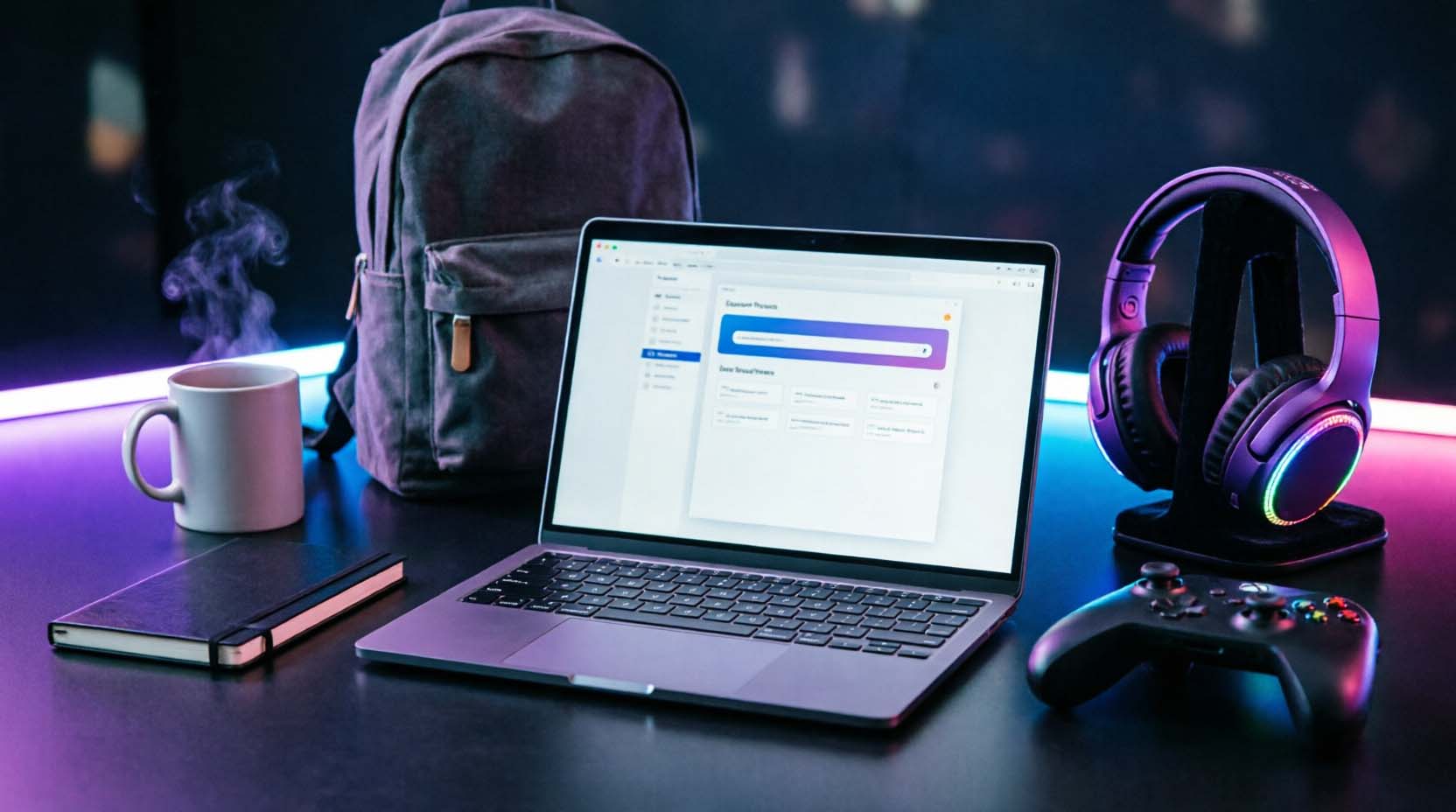
This guide sorts specs by three categories: work, school, and gaming. Figure out which one you are first. It changes what actually matters for your situation. A spec that's essential for a gamer can be completely irrelevant to a student, and vice versa.
Which one are you?
- Mostly emails, video calls, spreadsheets → Work
- Classes, papers, and a backpack → School
- Care about frame rates and graphics settings → Gaming
Keep that category in mind as you read. Every section below builds on it.
The 4 Specs Every Buyer Needs to Understand First
Regardless of category, every laptop comes down to four core specs. Get these right, and you're most of the way to a good decision. Everything else is fine-tuning.
RAM: Your Laptop's Short-Term Memory
RAM is what lets you keep ten browser tabs, a Zoom call, and a Word document open at once without everything slowing to a crawl.
Think of it like counter space in a kitchen. A small counter forces you to put things away constantly just to make room for the next task. A bigger counter lets you leave the cutting board, the mixing bowl, and the pan all out at once, working across several things without shuffling anything around.
16GB is a realistic floor today. Eight gigabytes used to be fine. Now it buckles the moment you've got a browser with a dozen tabs, background music, and a messaging app running at the same time- a completely normal load, not a heavy one. If you multitask constantly, or plan to edit photos and video, look at 32GB instead.
Storage: Where Your Files Actually Live
If RAM is the counter, storage is the pantry. Everything gets tucked away there until you need it again, and it doesn't clear out when you shut the laptop down.
512GB of SSD storage covers most people comfortably: your OS, your apps, a healthy photo library, and a few years of documents without constantly deleting things to make room. Bump to 1TB if you're storing a lot of video footage, working with large design files, or installing several games at once.
Make sure it's an SSD, not an older-style hard drive. Nearly every laptop worth buying today already uses one, but it's worth double-checking on ultra-budget models, where corners occasionally get cut.
Processor: The Brain of the Operation
The CPU decides how snappy everything feels when opening an app, running a spreadsheet full of formulas, or loading a page full of images. You don't need to memorize specific chip names. As a general guide, a mainstream processor released in the last two to three years (from Intel, AMD, Apple, or Qualcomm) comfortably handles work and school tasks. Gaming and heavy creative work need a different kind of horsepower: the GPU, covered below.
Battery Life: Read the Box, Then Discount It
The number printed on the box is tested under conditions nobody actually uses: minimum brightness, no background apps, airplane mode the entire time.
Independent battery-benchmark sites (RTINGS and NotebookCheck are two reliable ones) consistently show real-world runtime landing well short of that advertised figure under normal brightness and everyday multitasking. Treat the box number as a best case, not a plan, and if a specific model's real-world battery life matters to your decision, look up its independent test result rather than trusting the spec sheet alone.
Match the Laptop to Your Category
Best Laptop Setup for Work From Home
Working from home changes your priorities. You're not chasing raw speed for its own sake. You're chasing reliability, because a laptop that freezes mid-meeting makes you look bad in front of your boss.
Your checklist:
- Reliable battery for meeting-heavy days. You don't want to be scrambling to plug in mid-call.
- A decent built-in webcam and mic, or budget for an external one. Built-in cameras on cheaper laptops are often grainy and poorly lit.
- 16GB RAM minimum. Video calls eat memory faster than most people expect, especially with virtual backgrounds on.
- USB-C docking compatibility, if you use an external monitor. Check this before buying, not after you've unboxed everything and found your dock doesn't cooperate.
- A quiet, comfortable keyboard. You're typing for hours a day. A cramped or mushy one turns into a real annoyance by week two.
On operating systems for work: Windows 11 is the safe default for most remote work, especially if your company issues specific software. ChromeOS is a legitimate, cheaper option if your job is almost entirely browser-based (email, Google Workspace, video calls) and you don't need to install desktop software.
A steady, well-reviewed mid-range laptop covers most remote workers just fine. A fast, quiet 14-inch machine with 16GB of RAM will outperform a flashier, heavier one for this specific job. You rarely need to spend premium money to get there.
Laptop Checklist for Students
Students have a different set of headaches. You're hauling this across campus in a backpack, then pulling it out in a lecture hall with an outlet three rows away.
Run through this before you buy:
- Under 4 pounds if you're carrying it daily. Anything heavier gets old fast once you add textbooks and a charger to the same bag.
- 10+ real hours of battery life (checked against independent tests, not the box). Classrooms and libraries don't always have an open outlet, especially during finals week.
- Durable enough for backpack life. A flimsy hinge or a screen that flexes when closed won't survive a full semester of being tossed around.
- 512GB of storage is usually enough unless you're in film, photography, or a similarly storage-heavy program.
- Check your program's actual software requirements. Computer science, design, and engineering programs sometimes have real spec minimums. Confirm with your department before you shop.
On operating systems for school: general coursework (writing, research, most humanities and business classes) runs fine on Windows or ChromeOS. Engineering, CS, and design programs often specifically require Windows (for CAD, IDEs, or specialized software). Check before buying a ChromeOS or ARM-based machine for one of these majors.
If you're a teacher rather than a student, the priorities shift slightly: reliability for lesson planning and grading, plus a comfortable keyboard for constant typing. A capable GPU matters far less than a laptop that works every morning without a fuss.
Gaming Laptop vs. Regular Laptop: What Actually Differs
This is where people overspend most, and it usually comes down to one misunderstanding.
The real difference between a gaming laptop and a regular one is almost entirely the graphics card (GPU). RAM and storage still follow the same rules from the basics section above. The GPU is the one component that deserves its own explanation, because it does a fundamentally different job than the CPU.
A CPU is a generalist: it handles a task, or a handful of tasks, quickly and in sequence. A GPU is a specialist: built to render thousands of pixels and frames simultaneously exactly what a modern game needs for smooth, high frame rates. A fast CPU alone can't substitute for a weak or missing GPU once a game gets graphically demanding.
Do you actually need a dedicated GPU?
- Casual games, older titles, browser games, lightweight indie titles → integrated graphics on a modern chip handle this fine. No dedicated GPU needed.
- High frame rates on recent, graphically intense releases → a dedicated GPU is non-negotiable. As a rough current-generation reference point, a mid-range GPU (roughly RTX 4060-class) handles 1080p at high settings in most current titles. Stepping up to a higher tier matters mainly if you're targeting 1440p or higher refresh rates. GPU generations shift yearly, so check current benchmarks for the specific model you're considering rather than relying on this as a permanent rule.
The tradeoffs nobody mentions: gaming laptops run heavier, louder, and hotter than a standard laptop, because that GPU needs real airflow. Battery life takes a hit too. A powerful GPU draws power even when you're just browsing, not gaming.
People who buy a full gaming laptop for casual, low-demand use often end up complaining about the weight and fan noise for the next few years of ownership. Match the machine to what you actually play, not what you might play someday. A useful gut check: how many hours a week do you actually game, versus how many hours do you carry the laptop around campus or to a coffee shop?
Laptop Size and Weight Guide
|
Screen Size |
Typical Weight |
Best For |
|
11-13 inches |
Lightest |
Maximum portability, smaller screen space |
|
14-15 inches |
Moderate |
The general-purpose sweet spot for most buyers |
|
16+ inches |
Heaviest |
Gaming and creative work, least portable |
Match this to your category: students usually want the 13–14 inch range, balancing screen space with something manageable to carry daily. Work-from-home setups can go slightly bigger if a second monitor is already handling the heavy lifting. Gaming laptops naturally skew larger because they need physical room to cool the GPU.
Budget by Category: What to Expect at Each Price Point
|
Budget |
Work |
School |
Gaming |
|
Under $600 |
Fine for basic email/browsing only. Avoid for heavy multitasking |
Workable for general coursework. Check build durability |
Not viable for a dedicated GPU. Integrated graphics only |
|
$600–$1,000 |
Solid daily driver for most remote work |
Comfortable for most majors, including light creative work |
Entry-level dedicated GPU, 1080p at medium-high settings |
|
$1,000–$1,500 |
Better build quality, display, and battery life |
Overkill for most coursework unless in a demanding program |
Mid-range GPU (roughly RTX 4060-class), 1080p high settings |
|
$1,500+ |
Premium build, longest real-world battery |
Only justified for storage/design-heavy programs |
Higher-tier GPU, better cooling, 1440p or high refresh rates |
Brands like HP, Lenovo, ASUS, Acer, and Dell offer credible options across nearly every one of these tiers. A higher price tag alone isn't a reliable signal that a laptop fits your specific category better.
Laptop Buying Mistakes to Avoid
- Buying based on brand reputation alone. A trusted name doesn't guarantee the right laptop for your use case. Even great brands make budget models that cut corners.
- Assuming the priciest option is automatically the safest choice. Sometimes it just means paying extra for specs you'll never touch.
- Skipping the return policy check. Know your return window before buying, especially online where you can't test the keyboard first.
- Overbuying gaming specs for basic work or school tasks. You're paying for power you won't use and carrying extra weight for nothing in return.
- Underbuying battery life when portability actually matters. This is the mistake people regret fastest, often within the first month.
- Ignoring keyboard and trackpad feel entirely. Specs on paper don't tell you if typing on it for three hours a day feels comfortable or miserable.
Don't Forget the Accessories
Home workers often add a laptop stand and external keyboard for better posture during long days at the same desk. Students benefit from a padded bag that protects the laptop during the daily commute between buildings. Gamers sometimes need a cooling pad if the laptop runs hot under sustained load during longer sessions. None of these are essential on day one, but they're worth knowing about before your wrists start complaining or your laptop's fan sounds like it's about to take flight mid-session.
Final Thoughts
Go back to where we started: work, school, or gaming. That one decision shapes almost everything that follows, from screen size to how much you should reasonably spend. You don't need the laptop with the flashiest spec sheet on the shelf. You need the one that matches how you'll actually use it, week after week, long after the new-laptop excitement wears off.
Want the full spec-by-spec breakdown, or model-specific picks? See our companion guides: [How to Choose a Laptop in 2026: The Full Spec Breakdown] and [Best Laptops for Students].
Frequently Asked Questions
What's the most important thing to check when buying a laptop?
Match the specs to your actual use case first. For most buyers, RAM and real-world battery life matter more day-to-day than raw processing power alone.
How much should a beginner spend on a laptop?
Most reliable, general-purpose laptops fall between $600 and $1,000. Go lower for very basic tasks, or higher for creative and gaming work. See the budget table above for what to expect at each tier.
What laptop specs are best for remote work?
Prioritize real-world battery life, a decent webcam and microphone, and at least 16GB of RAM for smooth video calls and everyday multitasking.
Do I need a business-specific laptop, or is a regular one fine?
A regular, well-reviewed laptop works fine for most remote workers. Business-specific models mainly add extra security features and somewhat tougher build durability.
Do students need special software compatibility, or does any laptop work?
Most coursework runs fine on any modern laptop, but design, engineering, and computer science programs sometimes require specific software with real hardware minimums. Confirm with your department before buying.
Does the operating system matter as much as the hardware?
For most work and school use, less than people expect, Windows and ChromeOS both handle mainstream tasks well. It matters more for specific programs or software (engineering, CAD, certain creative tools) that require Windows specifically, and for gaming, where Windows is effectively the standard platform.
Do I need a gaming laptop, or will a regular laptop work?
Only if you're playing recent, graphically demanding titles at high settings. Casual and older games run fine on integrated graphics. See the GPU section above for where the line actually falls.