How to Choose a Monitor: Resolution, Refresh Rate, and Panel Type
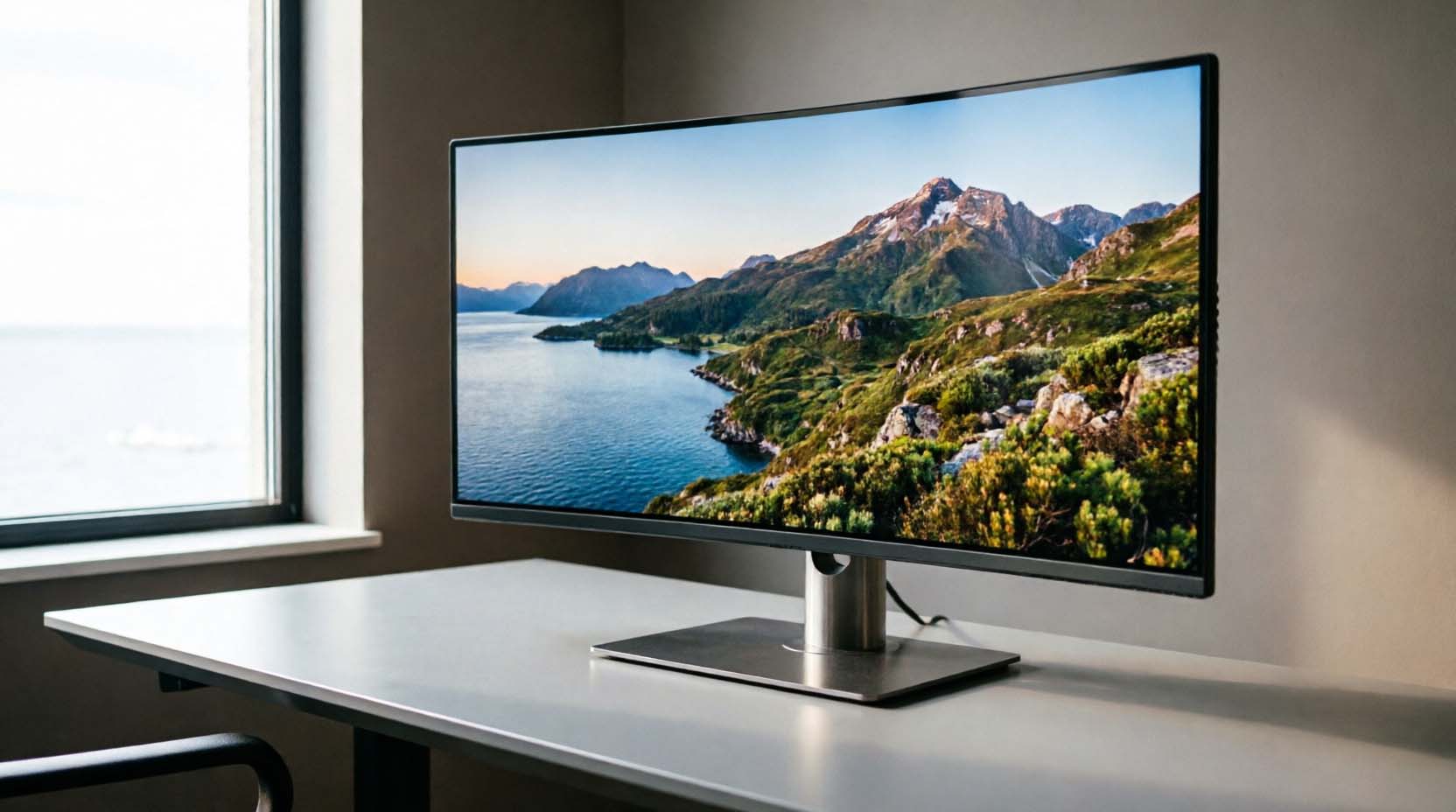
Most people buy a monitor based on one flashy number on the box. Usually it's the refresh rate. That's a mistake, because resolution, refresh rate, and panel type work as a team, not as solo performers. Get the mix wrong for your actual use case, and you'll end up with a monitor that looks great on paper but frustrates you every single day.
This guide gives you a decision framework, not just definitions. By the end, you'll know exactly which spec to prioritize based on your budget, your GPU, and what you actually do on your screen.
The 3 Specs That Actually Matter (And How They Interact)
Before comparing models, you need to understand what each spec does on its own. Then you'll see why none of them work in isolation.
Resolution: What It Really Affects
Resolution is the number of pixels packed into your screen. More pixels mean sharper text and finer detail, but only up to a point that your eyes can actually register at normal viewing distance.
The real metric that matters is pixel density, measured in PPI (pixels per inch), not the raw resolution number.
Rule of thumb: Below 24 inches, 1080p still looks sharp, at around 92 PPI. At 27 inches, 1440p (also called QHD) is the sweet spot, landing near 109 PPI. At 32 inches or larger, jump to 4K (UHD), or you'll start seeing individual pixels on text edges.
A spreadsheet-heavy office worker on a 24-inch screen genuinely doesn't need 4K. A video editor working on a 32-inch panel absolutely does, because color grading and detail work expose every soft edge at lower pixel density.
|
Screen Size |
Recommended Resolution |
Approx. PPI |
Best For |
|
21-24 inches |
1080p (Full HD) |
92-104 |
Office work, budget builds, casual browsing |
|
27 inches |
1440p (QHD) |
109 |
Gaming, general productivity, best value tier |
|
27-32 inches |
4K (UHD) |
137-163 |
Design, photo/video editing, high-end gaming |
|
34+ inches (ultrawide) |
1440p ultrawide or 4K |
105-140 |
Multitasking, trading desks, immersive gaming |
Refresh Rate: Matching Hz to Your Actual Use Case
Refresh rate is how many times per second your screen redraws the image, measured in Hz. Higher numbers mean smoother motion, but the benefit shrinks fast once you go past what your eyes and your GPU can actually use.
Numeric thresholds that matter:
- 60Hz works fine for office use, web browsing, and media playback.
- 75-100Hz adds noticeable smoothness for everyday scrolling and video, a genuine quality-of-life upgrade.
- 144Hz is the real baseline for competitive gaming, where fast motion tracking matters.
- 240Hz and above only pay off for competitive esports players who can consistently push that many frames per second and can actually perceive the difference in fast-paced shooters.
Here's the part most buyers skip. A 240Hz monitor paired with a GPU that only pushes 90 frames per second in your favorite game is a wasted purchase. You paid for headroom you'll never use.
Checklist to match Hz to your GPU:
- Check your average FPS in your top 2-3 games using a benchmark tool or in-game counter
- If your average sits below 100 FPS, a 144Hz monitor already covers you
- Only consider 240Hz+ if your GPU consistently clears 200+ FPS in your target titles
- Remember that competitive shooters (like fast-paced FPS games) benefit more from high Hz than slower-paced RPGs or strategy games
Panel Type: IPS vs VA vs TN vs OLED
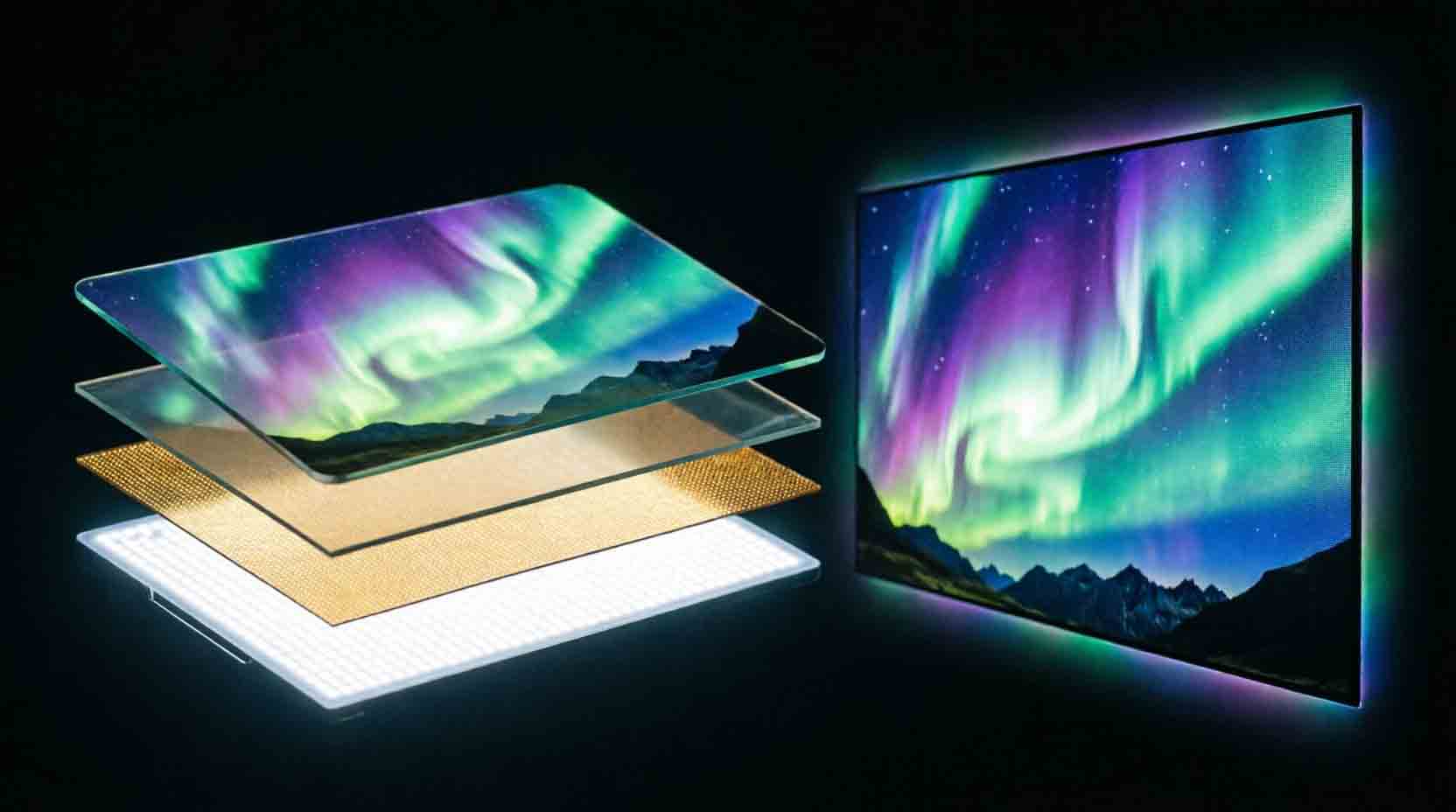
Panel type decides color accuracy, contrast, viewing angles, and response time. It's the spec most buyers ignore, and it's often the one that determines whether you're happy with your purchase six months in.
IPS panels deliver the most accurate colors and the widest viewing angles. They're the standard pick for design work and general use. Response times have improved a lot, with many "Fast IPS" panels now hitting 1ms GtG on paper, though independent testing usually shows real-world numbers closer to 3-4ms under normal settings.
VA panels offer deep contrast, often 3000:1 or higher compared to roughly 1000:1 on standard IPS. Blacks look genuinely black. The tradeoff is slower response time and some color shift at extreme viewing angles, which shows up as smearing during fast motion in dark scenes.
TN panels are the fastest and cheapest, with response times as low as 1ms GtG in real-world testing, not just marketing claims. Color accuracy and viewing angles are noticeably weaker, which is why TN has mostly been pushed into budget competitive-gaming monitors.
OLED panels light each pixel individually, producing true blacks and extreme contrast that no LED-backlit panel can match. The catch is burn-in risk with static content like taskbars or news tickers left on screen for long stretches, and current desktop OLED monitors carry a real price premium.
|
Panel Type |
Color Accuracy |
Contrast Ratio |
Response Time |
Best For |
Price Tier |
|
IPS |
Excellent |
~1000:1 |
1-4ms (real-world) |
Design, general use, hybrid gaming |
Mid |
|
VA |
Good |
3000:1+ |
4-8ms |
Movies, dark-room use, casual gaming |
Low to Mid |
|
TN |
Fair |
~1000:1 |
1ms (real-world) |
Competitive budget gaming |
Low |
|
OLED |
Outstanding |
1,000,000:1+ |
Under 1ms |
Immersive gaming, media, HDR content |
High |
The Tradeoff Triangle: PickSmartly's 2-of-3 Rule
Here's a framework you won't find in most spec breakdowns. Picture resolution, refresh rate, and panel quality as three points of a triangle. At any realistic budget, you can max out two of the three. Never all three at once.
Push for 4K resolution at 240Hz on a premium IPS panel, and you're looking at a price tag that starts around four figures. Most buyers don't need to spend that.
How to use the rule: Decide your top two priorities before you shop. If you're a competitive shooter player, pick refresh rate and panel speed, and let resolution settle at 1080p or 1440p. If you're a designer, pick resolution and panel accuracy, and accept a 60-75Hz refresh rate. This single decision eliminates 80% of the models you'd otherwise waste time comparing.
How to Choose Based on Your Use Case
For Competitive Gaming
Pick 1080p or 1440p, 144-240Hz, and a TN or Fast IPS panel. Prioritize response time and refresh rate over pixel count, since motion clarity wins games, not extra detail on a health bar icon.
Scenario anchor: A player grinding ranked matches in a fast-paced shooter should skip 4K entirely. Frame rate consistency matters more than resolution when reaction time decides the outcome.
For Work and Productivity
Pick 1440p on a 27-inch IPS panel at 60-75Hz. Text clarity and eye comfort during 8-hour workdays matter more than motion smoothness. Look for flicker-free backlighting and a low blue-light mode.
Scenario anchor: Someone running spreadsheets and video calls all day benefits far more from a matte IPS panel and a good stand than from any refresh rate above 75Hz.
For Content Creation and Design
Pick 4K on a 27-32 inch IPS panel with verified sRGB or Adobe RGB coverage above 95%. Refresh rate is a low priority here. 60Hz is genuinely fine.
Scenario anchor: A photo editor color-grading images for print needs accurate reds and skin tones far more than smooth scrolling. A cheap panel with washed-out color will cost you more in client revisions than the money saved buying it.
For General Use, Streaming, and Media
Pick 1440p or 4K on a VA or OLED panel at 60-100Hz. Contrast and black depth make movies and shows look dramatically better than raw pixel count alone.
Scenario anchor: Someone using a monitor mainly for Netflix and casual browsing gets more visible benefit from deep contrast (VA or OLED) than from chasing a 144Hz number they'll never notice during a movie.
Other Specs Worth a Quick Look
Don't let these become rabbit holes. Check them, then move on.
- VRR (G-Sync or FreeSync): Syncs your GPU output with the monitor's refresh rate to eliminate screen tearing. Worth having if you game at all, and now standard on most mid-range monitors.
- HDR: Only trust HDR claims backed by VESA DisplayHDR 600 certification or higher. Anything labeled "HDR ready" below that tier is a marketing sticker, not a real brightness or contrast upgrade.
- Ports: Confirm HDMI 2.1 if you're pairing with a current-generation gaming console, and DisplayPort 1.4 if you're running high refresh rates from a PC.
- Stand adjustability: Height, tilt, and swivel adjustment prevent neck strain during long sessions. A fixed stand on an otherwise great monitor is a real daily annoyance.
Common Mistakes to Avoid
- Buying a 4K monitor without a GPU strong enough to drive games at that resolution above 60 FPS
- Chasing high Hz numbers while ignoring panel type, then wondering why colors look flat
- Assuming bigger is always better without adjusting your desk distance, which just means more neck movement
- Skipping the return policy, since dead pixels and backlight bleed sometimes only show up after a few days of use
Hard Threshold Comparison: Which Spec to Prioritize
|
Your Priority |
Minimum Resolution |
Minimum Refresh Rate |
Recommended Panel |
Skip If |
|
Competitive gaming |
1080p |
144Hz |
TN or Fast IPS |
Your GPU averages under 100 FPS in your games |
|
Office productivity |
1440p |
60Hz |
IPS |
You need contrast more than color accuracy |
|
Design and editing |
4K |
60Hz |
IPS (95%+ sRGB) |
Your workflow is mostly text, not visuals |
|
Movies and media |
1440p |
60-100Hz |
VA or OLED |
Static content stays on screen for hours daily (OLED burn-in risk) |
Buyer Decision Tree
Use this checklist in order. Stop at the first question that applies to you.
- Is your main use competitive gaming? If yes, prioritize refresh rate and response time. Go to 1080p or 1440p, 144Hz minimum, TN or Fast IPS.
- Is your main use design or photo/video editing? If yes, prioritize resolution and color accuracy. Go 4K, IPS. 60Hz is fine.
- Is your main use office work or general productivity? If yes, prioritize eye comfort. Go 1440p, IPS, 75Hz is a nice bonus, not a requirement.
- Is your main use movies, shows, or casual browsing? If yes, prioritize contrast. Go VA or OLED, 1440p, 60-100Hz.
- Still unsure? Default to a 27-inch, 1440p, IPS panel at 100-144Hz. It's the single most balanced combination across nearly every use case.
Who Should NOT Buy Certain Monitors
Radical honesty here, because most buying guides won't tell you this part.
Skip high refresh rate monitors if you're not gaming competitively. A 240Hz panel on a monitor used for email and spreadsheets is money spent on a spec you'll never see.
Skip OLED for a primary desktop monitor if you run static taskbars, coding IDEs, or spreadsheet grids for 8+ hours a day. Burn-in risk on static UI elements is real, not theoretical, and VA or IPS will serve you better and cheaper.
Skip 4K if you're gaming competitively on a mid-range GPU. You'll get a smoother, more responsive experience at 1440p with higher frame rates than you would fighting for 60 FPS at native 4K.
Skip TN panels if you do any color-sensitive work, even casually editing vacation photos. The washed-out color and narrow viewing angles will bother you faster than you expect.
Final Verdict
Stop chasing the single biggest number on the box. Decide your top two priorities using the 2-of-3 rule, match them to your actual use case from the decision tree above, and let the third spec fall where your budget lands. That one shift in approach will save you more regret than any spec sheet comparison ever could.
Frequently Asked Questions
Is 1440p or 4K better for gaming?
1440p is the better all-around choice for most gamers, because it hits a stronger balance between visual detail and achievable frame rates on mid-range GPUs. 4K looks sharper but demands significantly more GPU power to maintain smooth frame rates.
Do I need 144Hz if I'm not a competitive gamer?
No. Casual gamers and general users see diminishing returns above 75-100Hz. Save the budget difference for a better panel type instead.
What's the best panel type for eye strain and office work?
IPS panels paired with a flicker-free backlight and a low blue-light mode are the most comfortable choice for long work sessions, thanks to consistent color and wide viewing angles.
Is response time or refresh rate more important?
They work together. A high refresh rate without a fast response time causes ghosting during motion, so check both specs from independent test sources, not just the box.
Can my GPU actually handle a 4K 144Hz monitor?
Only high-end GPUs can consistently push 144 FPS at 4K in demanding games. Check your GPU's average frame rate at 4K in your specific titles before buying, since box specs don't account for your actual hardware.
Does panel type affect gaming performance, or just visuals?
It affects both. Panel type impacts response time and motion clarity directly, along with color and contrast, so it's not purely a visual spec.
Is OLED worth it for a desktop monitor, or is burn-in a real risk?
OLED delivers the best contrast and color available today, but burn-in is a genuine risk with static content displayed for long hours daily. It's a strong pick for gaming and media, a riskier pick for all-day office use.
What resolution do I need for a 27-inch monitor?
1440p is the sweet spot for a 27-inch screen, landing around 109 PPI. 1080p on the same size looks noticeably softer, while 4K delivers sharpness most people won't fully notice at normal desk distance.