What Is a Passkey and Should You Use One Instead of a Password?
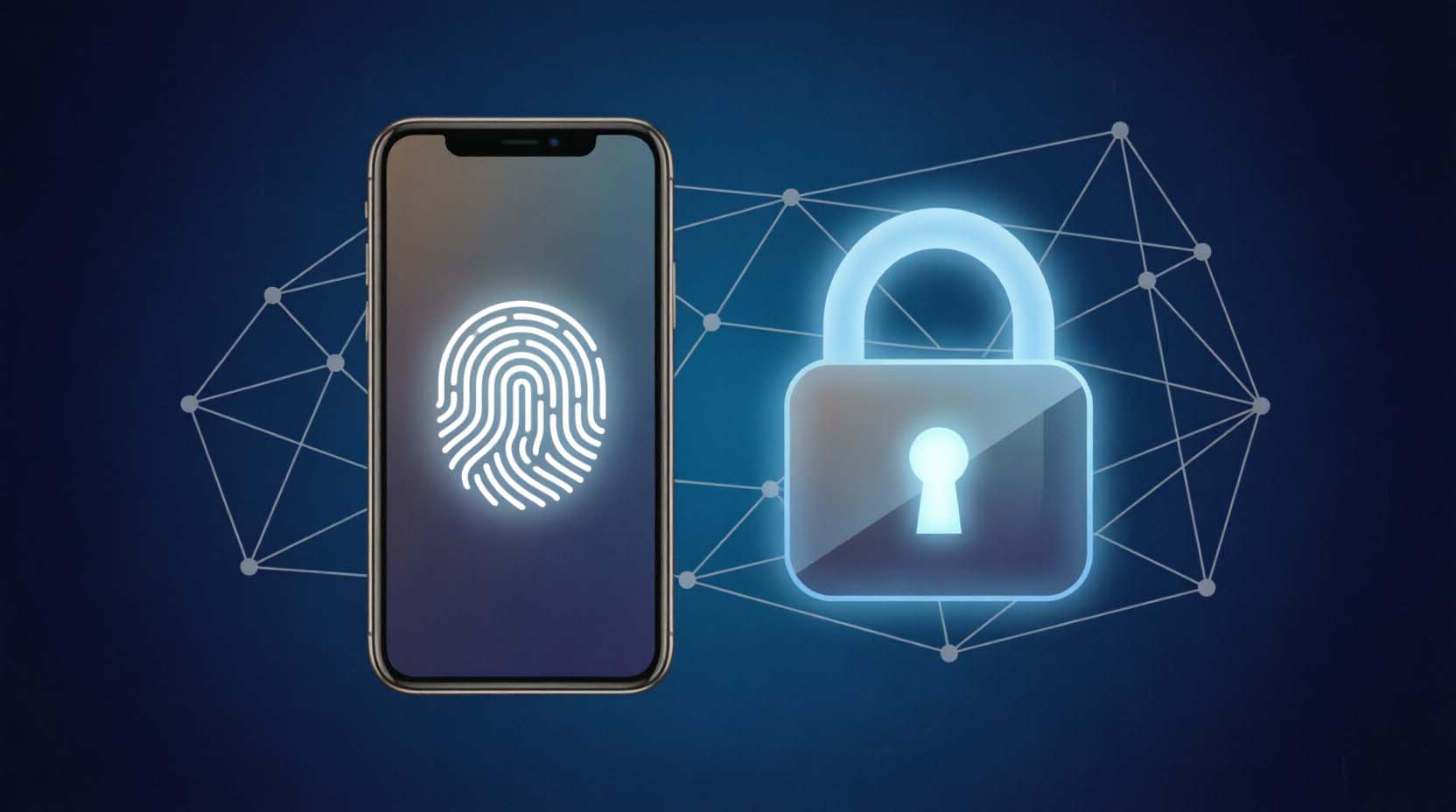
A passkey is a login credential that replaces your password with a cryptographic key pair. Your device holds the private key and unlocks it with a fingerprint, face scan, or PIN. For most people, yes, use passkeys on important accounts where offered. Set up recovery first.
Key takeaways
- Passkeys resist phishing because they only work on the real website.
- Nothing usable is stored on the site's server, so breaches leak far less.
- Recovery is the weak spot. Your Apple, Google, or Microsoft account becomes the master key.
- Keep your old password until you pass the 2-2-2 Switch Rule below.
You have probably seen the "Create a passkey?" prompt on Google, PayPal, or Amazon and tapped "Not now." That hesitation is reasonable. This guide explains what you are agreeing to and which accounts to move first. It also covers what can go wrong.
What Is a Passkey? (Plain-English Definition)
A passkey is a digital credential that proves you are you without a typed secret. It runs on public-key cryptography, the same idea behind the FIDO2 and WebAuthn standards from the FIDO Alliance and the W3C.
Think of a hotel room lock. The website keeps only the shape of the lock, called the public key. Your device holds the actual key, called the private key, and never shows it to anyone. The lock can confirm your key fits without ever seeing it.
The result matters. No shared secret sits on the site's server. If the site is breached, attackers get public keys, which cannot log in anywhere.
Passkey vs Password: The Core Difference
Passwords are secrets you type. That means they can be guessed, reused, phished, or leaked. Passkeys are never typed or sent, and they are bound to the exact domain that created them.
|
Feature |
Passkey |
Password only |
Password + SMS code |
Hardware security key |
|
Phishing resistance |
High |
None |
Low |
Highest |
|
Reuse risk |
None |
High |
High |
None |
|
Exposed in a site breach |
No usable secret |
Often, as crackable hashes |
Often |
No usable secret |
|
Recovery ease |
Depends on your cloud account |
Easy email reset |
Easy |
Hard without a backup key |
|
Convenience |
Good, best inside one ecosystem |
Excellent |
Fair |
Good with NFC or USB |
How Do Passkeys Work? (Step by Step)
The process has two phases. Registration happens once. Sign-in happens every time.
- You choose "Create a passkey" in the account's security settings.
- Your device generates a matching key pair.
- The public key goes to the website. The private key stays on your device.
- At sign-in, the site sends a random challenge, and your device asks for a fingerprint, face scan, or PIN.
- Your device signs the challenge. The site checks the signature with your public key and confirms the domain.
Your fingerprint never leaves your device. The biometric only unlocks the private key locally. The website never receives a scan, an image, or a template.
Synced Passkeys vs Device-Bound Passkeys
|
Aspects |
Synced passkeys |
Device-bound passkeys |
|
Where they live |
iCloud Keychain, Google Password Manager, Microsoft, 1Password, Bitwarden, Dashlane |
One hardware key such as a YubiKey |
|
Backup |
Automatic through your cloud account |
None unless you enroll a second key |
|
Main risk |
Cloud account takeover |
Losing the key |
|
Best for |
Everyday accounts |
High-value accounts and admin logins |
NIST's 2025 revision of its digital identity guidelines (SP 800-63B-4) treats syncable passkeys as acceptable at assurance level AAL2. It reserves AAL3 for non-exportable, hardware-bound authenticators. Confirm the current wording on nist.gov before you cite it in your own work.
Signing In on a New or Someone Else's Device
Say you are signing in on a work laptop and your passkey lives on your phone. The laptop shows a QR code. You scan it, and the phone confirms over Bluetooth. That Bluetooth proximity check matters because a phishing site on another continent cannot fake it.
Are Passkeys Safer Than Passwords?
For phishing and credential stuffing, yes. A fake bank login page cannot use your passkey because the domain does not match. Your device simply refuses.
Credentials matter. Verizon's 2025 Data Breach Investigations Report listed credential abuse as the initial access step in roughly one in five breaches it analyzed. Pull the latest figure before publishing, since the number shifts each year.
Now the lab-versus-reality gap. Passkey phishing resistance is a design property. In real life, attackers go around it.
|
Passkeys help stop |
Passkeys do not stop |
|
Fake login pages |
Someone who steals your unlocked phone and knows its PIN |
|
Password reuse across sites |
A hijacked Apple ID or Google account that syncs your passkeys |
|
Credential stuffing |
Malware already running on your device |
|
Leaked server databases |
Weak fallbacks such as SMS resets on the same account |
That last row is the one roundups skip. A passkey account with an easy SMS reset is only as strong as the reset. Check your fallback options after you enroll.
Should You Use a Passkey Instead of a Password? (Our Verdict)
Yes, for high-value accounts that support them. Keep a strong password and two-factor authentication as a fallback until recovery is proven.
|
Account type |
Recommendation |
Timing |
|
Primary email (resets everything else) |
Switch |
Today |
|
Apple, Google, or Microsoft account |
Switch |
Today |
|
Banking and PayPal |
Switch |
Within 7 days |
|
Amazon and major retailers |
Switch |
Within 30 days |
|
Work accounts |
Follow IT policy |
Ask first |
|
Shared streaming or family logins |
Keep password |
Wait |
|
Low-value forums |
Optional |
Whenever |
When Passkeys Are the Better Choice
- You log in mainly from your own phone or laptop.
- The account is a frequent phishing target, like PayPal or your bank.
- You currently reuse a password on 3 or more sites.
Your primary email is the strongest first candidate. Whoever controls it can reset almost everything else.
When You Should Wait or Keep a Password
- The account is shared by 2 or more people, such as a family Netflix login.
- Your device is older than roughly iOS 16, Android 9, or a current Windows 10 or 11 build with Windows Hello. Check each vendor's requirements.
- Your workplace uses strict single sign-on rules.
- You have not secured your Apple or Google account recovery.
The 2-2-2 Switch Rule
Before you retire a password on an important account, confirm all three:
- 2 devices or authenticators enrolled. A phone plus a laptop works, or a phone plus a hardware key.
- 2 recovery paths ready. Use a verified recovery email and phone, or a saved recovery code.
- 2 weeks of using the passkey alongside the old password without a problem.
Then switch in order of blast radius. Email first, then banking, then everything else.
What Happens If You Lose Your Phone or Switch Devices?
With synced passkeys, a new iPhone signed into your Apple ID restores them. A new Android phone does the same through your Google account. Both depend on you still controlling that account. That is why recovery comes first.
Switching ecosystems is the sharp edge. Moving from Android to iPhone does not automatically carry passkeys over. You sign in with your fallback method and create fresh passkeys. Emerging FIDO credential exchange standards may smooth this, but support is uneven today.
Before you delete a password, check that:
- Two devices or keys are enrolled on the account
- Your recovery email and phone number are current
- A recovery code is saved offline
- Your Apple, Google, or Microsoft account has its own strong password and 2FA
- You have tested a sign-in from a second device
How to Set Up a Passkey
Menu labels change with app updates, so use these as a map and confirm against each vendor's current help page.
- Google: Open your Google Account, go to Security, then choose "Passkeys and security keys." Select "Create a passkey" and confirm with your screen lock.
- Apple: Sign in to a supported site in Safari on iOS 16 or later, macOS Ventura or later. Accept the passkey prompt and confirm with Face ID or Touch ID. It saves to iCloud Keychain.
- Amazon or a bank: Open your account's "Login and security" section and look for "Passkey." Follow the prompt on the device you use most.
- Windows: Set up Windows Hello first. Then create the passkey from the site's security page in Edge or Chrome.
Method note: These steps follow official Apple, Google, and Microsoft documentation. Confirm current menu names on the day you follow them.
Passkey Managers and Security Keys: What You Actually Need
Most people need nothing extra. Built-in options are free and work well inside one ecosystem.
|
Option |
Best for |
Cross-platform? |
Cost |
Main drawback |
|
iCloud Keychain / Passwords app |
Apple-only households |
Limited |
Free |
Awkward on Windows and Android |
|
Google Password Manager |
Android and Chrome users |
Partly |
Free |
Ties you to your Google account |
|
Windows Hello |
Windows-first users |
Limited |
Free |
Best paired with a Microsoft account |
|
1Password, Bitwarden, or Dashlane |
Mixed Windows and iPhone users |
Yes |
Free tier or paid plan, typically a few dollars monthly |
Another account to secure |
|
Hardware key |
Admins, high-value accounts |
Yes |
Roughly $25 to $75 |
Storage limits and lockouts |
Is a Hardware Security Key Worth It?
Buy one if you manage a business account, hold significant crypto, or want a backup that survives losing your cloud account. The YubiKey Security Key C NFC is the entry-level option, and the YubiKey 5C NFC adds broader protocol support. Verify current Amazon pricing and FIDO2 support for any model before you order.
Buy two. Keep one on your keychain and one in a drawer or safe.
Skip it if you only use a phone and a laptop, both synced and both secured. Also know two overlooked tradeoffs:
- Keys store a limited number of passkeys, often 25 to 100 depending on model and firmware.
- A wrong PIN entered about 8 times typically locks the FIDO2 function and forces a reset that wipes stored passkeys.
Common Passkey Myths
|
Myth |
Fact |
|
"Websites receive my fingerprint." |
Biometrics unlock the key on your device only. |
|
"A passkey is just a password manager." |
A passkey is a credential. A manager is where you can store it. |
|
"Passkeys only work on Apple devices." |
They work on Apple, Android, Windows, and hardware keys. Sync is smoothest inside one ecosystem. |
|
"Passkeys are unhackable." |
They resist phishing, but account takeover and device theft still matter. |
Which Path Fits You? A Quick Decision Tree
- Does the account reset other accounts or hold money? Yes: go to step 2. No: switch whenever convenient.
- Do you control your Apple, Google, or Microsoft account with strong 2FA? No: fix that first. Yes: go to step 3.
- Do 2 or more people share the login? Yes: keep the password. No: go to step 4.
- Do you use both Apple and Windows or Android devices? Yes: use a cross-platform manager. No: use the built-in option.
- Do you manage business or crypto accounts? Yes: add two hardware keys. No: skip them.
Bottom Line
Passkeys are a real upgrade for phishing resistance, but they are not magic. Recovery and ecosystem friction are the trade-offs you manage.
Your next three steps:
- Secure your Apple, Google, or Microsoft account with a strong password and 2FA.
- Create a passkey on your primary email today and test it from a second device.
- Apply the 2-2-2 Switch Rule before you retire any password.
Frequently Asked Questions
What is a passkey in simple terms?
It is a login method that replaces your password with a private key stored on your device. You unlock it with a fingerprint, face scan, or PIN. The website only holds a public key that cannot log in for anyone.
Is a passkey more secure than a password?
Generally yes. Passkeys resist phishing, reuse, and server leaks. They do not protect you if your cloud account is hijacked or someone unlocks your phone. Security depends on your recovery setup and any remaining password fallback.
Can passkeys be phished?
The passkey itself cannot be typed into a fake site, because it is tied to the real domain. Attackers instead target fallback methods like SMS resets or trick you into approving a prompt. Remove weak fallbacks where you can.
What if I lose my phone?
Synced passkeys restore when you sign into your Apple, Google, or Microsoft account on a new device. Without access to that account or a backup key, you may lose them. Save recovery codes before you need them.
Do passkeys work on all devices and browsers?
Most current phones, computers, and major browsers support them. Older operating systems may not. Check the vendor requirements for your exact device and browser version before switching.
Is a passkey the same as two-factor authentication?
Not exactly. A passkey combines "something you have" (your device) and "something you are or know" (biometric or PIN) in one step. You can still layer 2FA on top.
Do I still need a password manager?
Yes, for most people. Many sites still require a password, and a manager stores those safely. Some managers also store passkeys and sync them across Apple, Android, and Windows.
Do I need to buy a security key?
No. Built-in options are free. A key is an optional backup for high-value accounts. If someone pushes one on you as a requirement for basic passkey use, be skeptical.